 MicroNotch


A timer finishes while you’re working. A message comes in a minute later. You can see both kinds of alert in the same drawer at the top of your screen. Build 11 also gives the everyday tools a clearer layout and brings MicroNotch to Macs running macOS Sequoia.
One drawer for notifications and activities
The drawer follows your theme. You can see supported app notifications, calls, finished timers, meeting reminders, Keep Awake changes and coding alerts there. Under Settings → Notifications → Notification previews, choose Show automatically to open the drawer as alerts arrive. Turn Off keeps it closed and is the default for new setups. If you already had automatic previews on, they stay on. The old preview indicator has gone.

Choose which apps to show in Notifications. MicroNotch needs optional Full Disk Access to read stored notifications. To reply from the drawer, you need a Messages notification that offers Reply, visible message previews and permission for MicroNotch to send through Messages. Show Phone and FaceTime calls in notch starts off. If you turn it on, Answer and Decline need Accessibility access and Apple’s live call banner. With automatic previews on, try Show demo text or Show demo call in Settings.
Make Home yours
In Settings → Displays → Panel layout → Home layout, Standard is the default in every theme. When there’s room, Music sits beside Today and Reminders. Choose Stacked to put the three cards in one column. The layout and text size each have their own setting, and Comfort keeps its larger text and extra spacing.
In Dark, Graphite, Light, Pure White and Comfort, cards and borders use neutral colours. System follows your Mac’s appearance. You’ll still see colour where it helps, such as a warning or a rise or fall in Stocks. In Settings → Displays → Reading tint, try Soft yellow, Pale turquoise or Soft blue on panel and card backgrounds. Tint starts off, and it leaves the artwork, text and controls alone.

When synced lyrics are available, Home rolls one line at a time over the cover artwork. In the compact notch, the waveform sits opposite the artwork. It moves while music plays and stays still when you pause or turn on Reduce Motion.

Find your way around the everyday tools
Shelf puts file type, name, size and actions together on each row. In Utilities, Keep Awake gets a full row above Volume, Background noise and Colour picker. We’ve made small fixes to how Keep Awake manages your display during a session. Mirror gives you a wider view after you choose Start camera. In Converter, scroll categories on the left while the amount and result sit one above the other on the right.

AI Usage shows three cards at a time. Swipe on a trackpad, scroll across with a mouse or use the arrow buttons to change pages. In Stocks, small charts show recent price movements from Apple Stocks data saved on your Mac. The quotes may be out of date. Weather uses colour to distinguish conditions. If you haven’t set a city, Weather tries to use your location when you open it. Allow Location Services or search for a city instead. System groups CPU, memory and other readings into larger cards, with Network across the bottom.
Work with Apple Notes and choose an Ask Micro provider
Connect Apple Notes in Quick Note to browse folders, search titles and preview text. You can edit eligible notes, including numbered lists. Choose Open in Notes for locked or shared notes, bulleted lists, checklists and notes with items such as tables, links or attachments. Use Save to Apple Notes to make a formatted copy of your scratchpad in a folder you choose. Saving a checklist needs a one-time Shortcuts setup. On macOS 15 the new checklist starts unticked and your local ticks stay in Quick Note.

Ask Micro uses Apple Intelligence on a compatible Mac with macOS 26 or later. You can also choose DeepSeek Flash or a supported OpenRouter text model. Save your own API key in Settings → AI Monitors & Keys, then pick the provider in Ask Micro. If you choose OpenRouter, pick a model there too. Your chat goes to the provider you select, and that provider may charge you.
Answer a Codex terminal approval in the notch
If you run Codex in a standalone terminal, connect Codex in Settings → Code, turn on Codex CLI approvals and run /hooks in Codex to review and trust the MicroNotch hook. While you’re in Code mode, you can approve or deny supported requests to run a command or edit a file. Choose Continue in harness to decide in Codex instead. Codex desktop questions and follow-ups use a separate connection. See the Code mode guide for the controls available with each tool.

If you prefer to leave notification previews off, try Open Code for new activity in Settings → Code. In Code mode it opens the main panel for fresh requests or finished runs without taking keyboard focus.
Find permissions and set your dictation shortcut
Open Settings → Permissions to see what each optional permission is for and where to manage it. You can skip a permission in Quick Setup and return to it when you need the feature. Privacy & About brings clipboard history, data use, updates and support together.

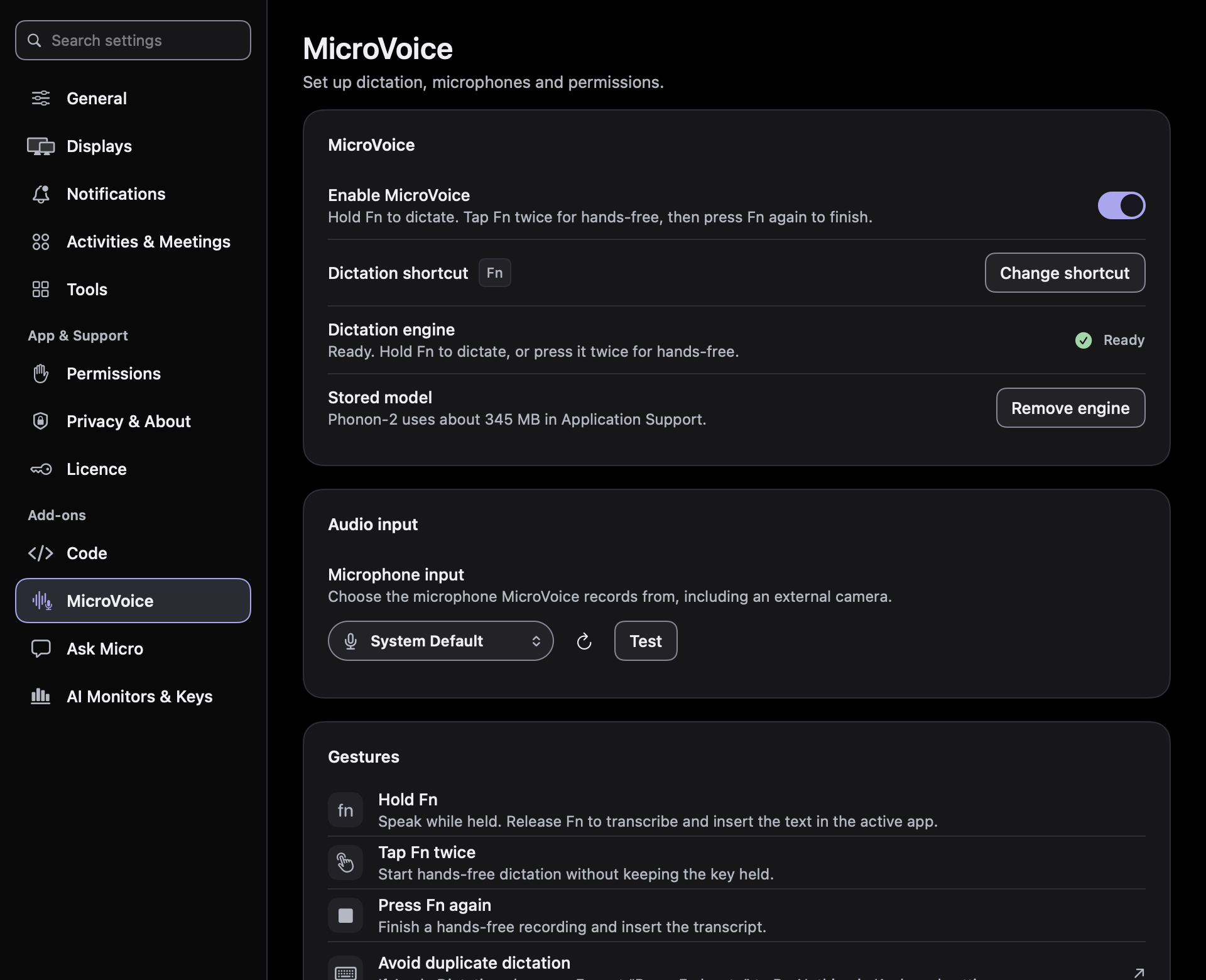
Use Fn to dictate, or choose Change shortcut in Settings → MicroVoice to set your own key combination. When MicroVoice is active, its waveform takes over from music without an orange border around the whole notch. The local Phonon-2 dictation engine is designed for Apple silicon; we haven’t verified it on Intel Macs.
Get Build 11 on your Mac
MicroNotch requires macOS 15 Sequoia or later. One universal download works on Apple silicon and compatible Intel Macs. A built-in display notch is optional. Apple’s Sequoia compatibility list includes some 2018 MacBook Pro models, the 2018 Mac mini, the Intel MacBook Air from 2020 and 2019 iMacs. We ran the Intel version through Rosetta on Apple silicon. We didn’t test the release on a physical Intel Mac.
Already using MicroNotch? Check for updates from the MicroNotch menu. If you’re new, download MicroNotch for Mac and start the three-day trial in the app without a card. The changelog has the short version, and Help covers setup.