 MicroNotch

Our new one-minute video takes a closer look at two parts of MicroNotch: local English dictation with MicroVoice, and keeping supported AI coding sessions in view at the top of your Mac.
Watch the demo
The video follows the dictation gesture from holding Fn to inserting text, then shows active coding sessions, requests that need input and finished work. It finishes with a quick look at clipboard history, the file shelf and timers.
- 00:00: Meet MicroNotch
- 00:10: Voice dictation with MicroVoice
- 00:30: Code mode and input requests
- 00:49: Everyday tools and the free trial
Hold Fn, speak and release
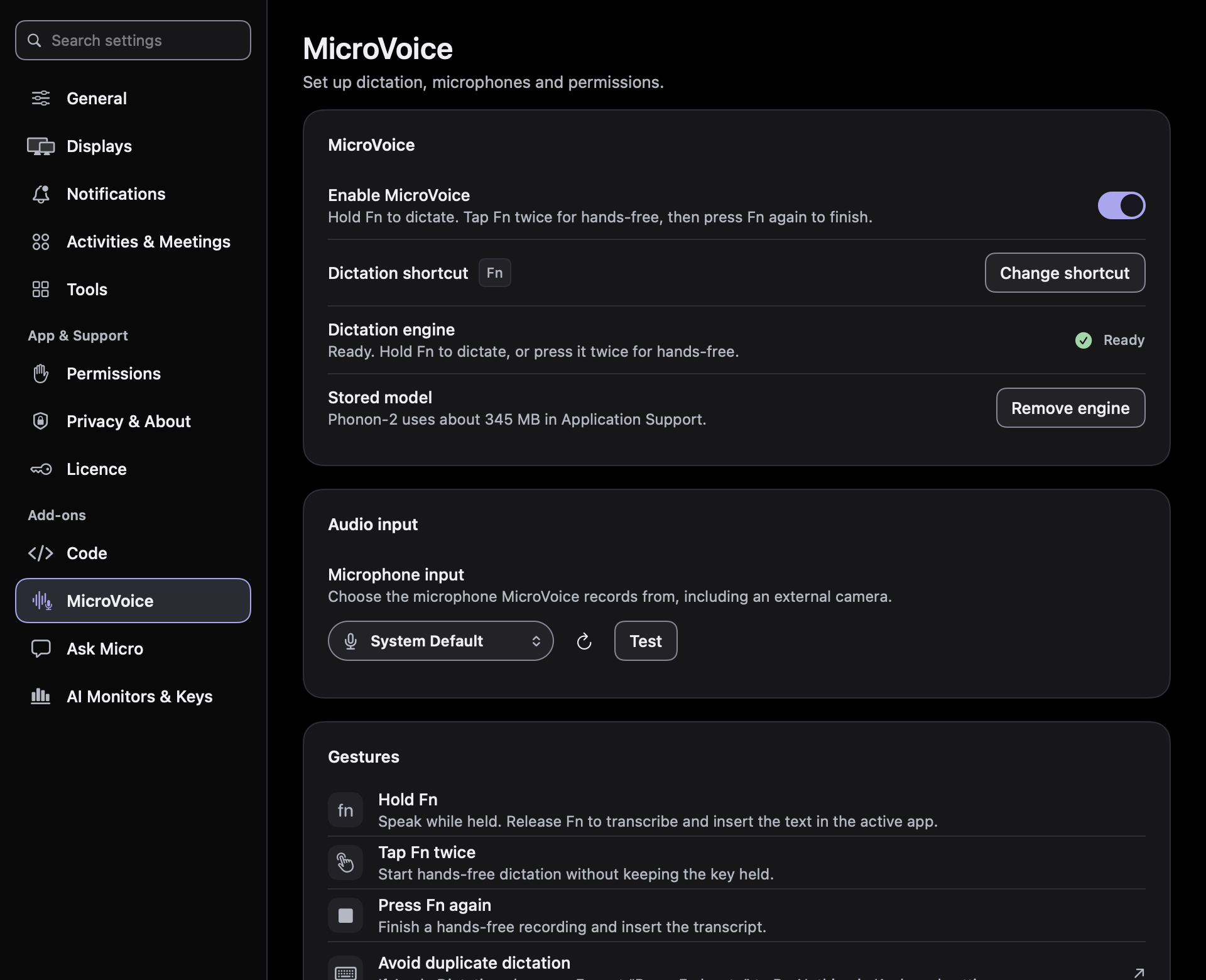
MicroVoice turns a spoken reply, note or idea into text. Start in the app where you want to write, hold Fn while you speak, then release it to transcribe. MicroVoice copies the result to your clipboard and, with Accessibility permission, can paste it into the active app.
For hands-free dictation, double-tap Fn to start and press it once more when you have finished speaking. Each recording is limited to two minutes. Review the resulting text before sending or sharing it.

English transcription runs locally on your Mac after downloading the Phonon-2 model, about 345 MB. The initial download needs an internet connection; transcription does not use a cloud dictation service or API key.
MicroVoice needs Microphone access and Input Monitoring for the Fn gesture. Accessibility enables text insertion into other apps. Phonon-2 is designed for Apple silicon; MicroVoice has not been verified on Intel Macs.
Explore MicroVoice or follow the setup and permissions guide.
See which coding sessions need you
Code mode brings supported coding sessions together so you can check their state from the top of your screen. The video shows three views:
- Active: see supported sessions that are working.
- Requires input: find requests waiting for your attention and open their details.
- Completed: review finished sessions and their outcomes, including completed, failed or cancelled runs.

Supported connections include Codex, Claude Code, Cursor and Antigravity. Monitoring, input detection and available controls depend on the provider and connection. Some requests can be handled through a supported connection; other actions continue in the source application.
The Code mode capability table explains what each connection can do and links to setup information.
Try the workflows on your Mac
The final part of the video also shows clipboard history, the file shelf and timers. They sit alongside dictation and Code mode, giving everyday tasks a place at the top of the screen.
MicroNotch requires macOS 15 Sequoia or later and works with or without a notch. Download MicroNotch and start the free three-day trial in the app, with no card required. The paid licence is a one-time purchase for two Macs.

