 MicroNotch
A place between tasks
Drop files into the notch and keep the copies close.
Gathering a few files should not mean keeping a Finder window in front of everything. Drop them into the notch and keep copies ready for the next step.
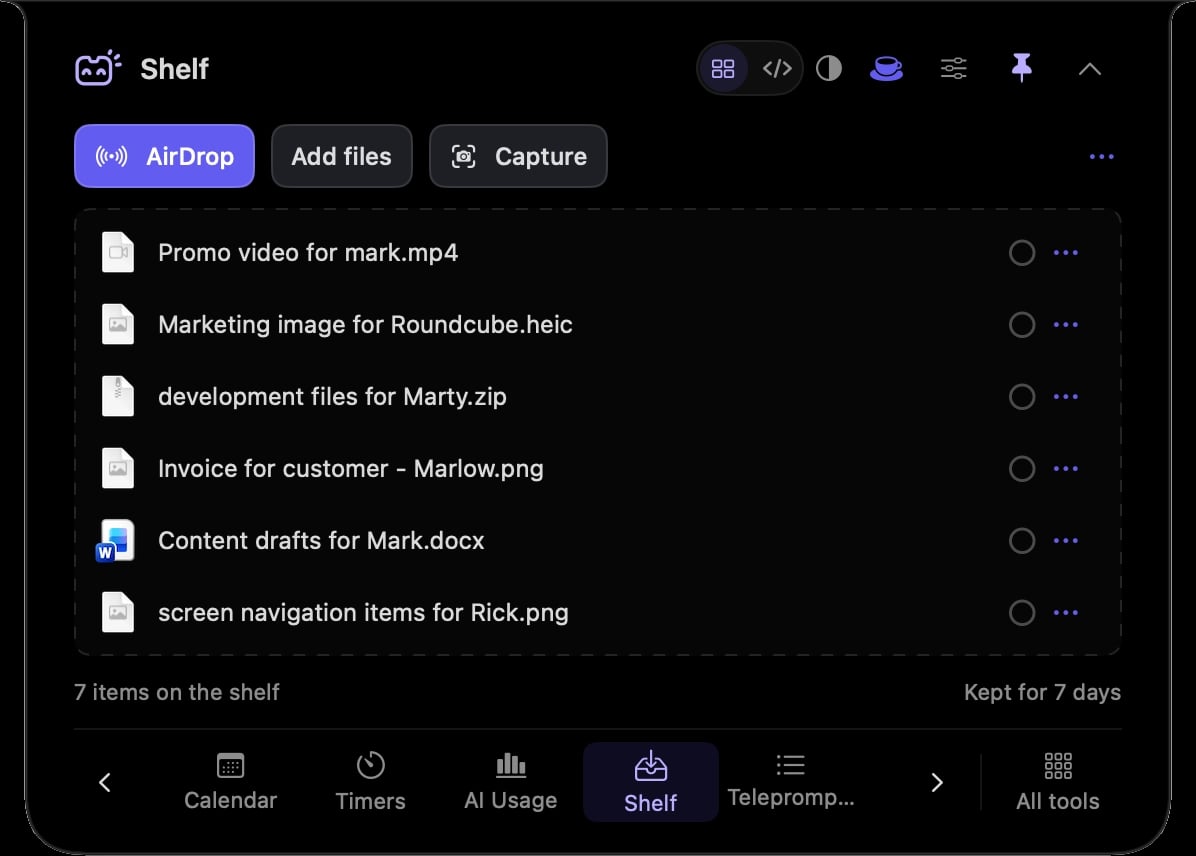
Drop files into the notch and keep the copies close.
The shelf holds its own copies, leaving the source files where they are.
Make a ZIP when a group of files belongs in one package.
Send files from the shelf using the Mac’s familiar sharing flow.
Collect the document and images you need to send, then make a ZIP from the shelf.
Keep a copy close while you switch to the app where you need the file next.
Hover over or click the compact notch, use the menu-bar icon, or press Control–Option–Space. Search tools with Control–Option–K. If a shortcut is already taken, check the active shortcut in Settings.
Pin a favourite from All tools for quicker access. More about opening the notch
Closing the notch does not move your original files. Reopen File shelf to return to the copies you have kept there.
File shelf is one of 21 tools and features in MicroNotch.
Back to all toolsSign up for emails about product updates, new features and new products.
£14.99 introductory launch price · two Macs.One-time · licence never expires · standard price £19.99. Buy MicroNotch