 MicroNotch
Processor load
Check how busy the processor is.
When you want to know what your Mac is doing, take a quick look from the notch. Keep the main system readings together without opening another window.
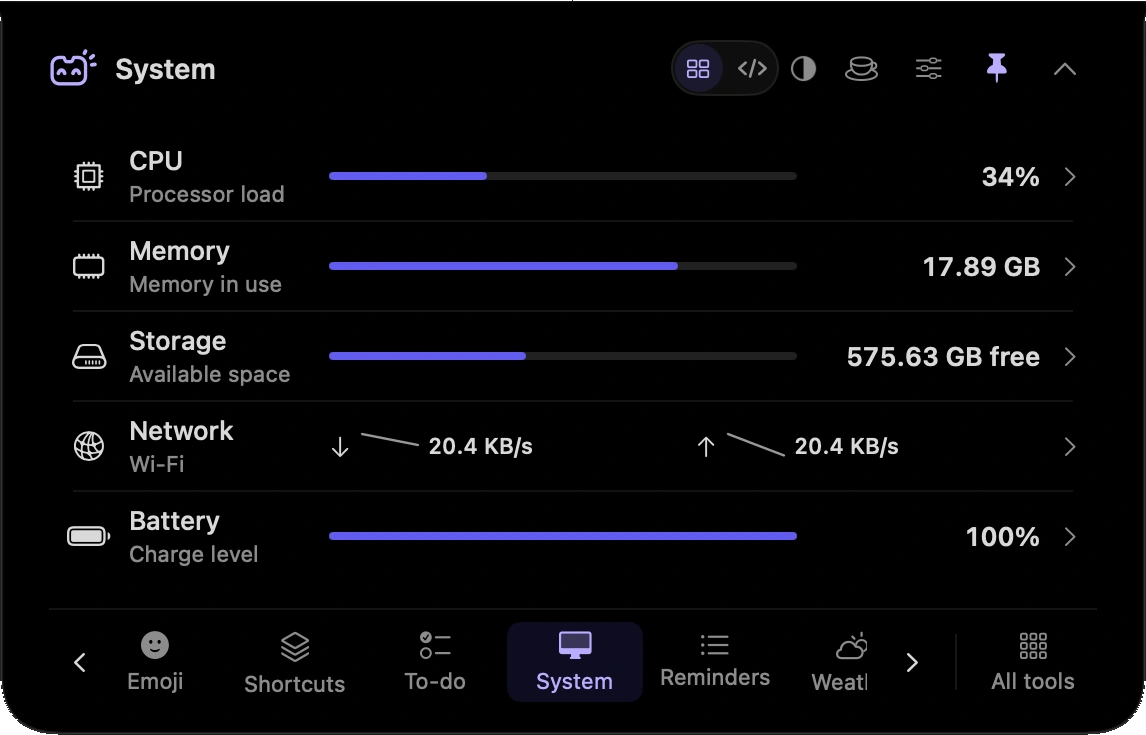
Check how busy the processor is.
See the memory and storage readings available from your Mac.
Check battery information where your Mac supports it.
See network activity readings alongside the other system information.
Check processor and memory readings when your Mac feels occupied with a task.
Take a quick look at battery and storage information before moving on.
Hover over or click the compact notch, use the menu-bar icon, or press Control–Option–Space. Search tools with Control–Option–K. If a shortcut is already taken, check the active shortcut in Settings.
Pin a favourite from All tools for quicker access. More about opening the notch
The System panel stops its own sampling when it is no longer in use. Reopen it for current readings rather than leaving it visible all day.
System is one of 21 tools and features in MicroNotch.
Back to all toolsSign up for emails about product updates, new features and new products.
£14.99 introductory launch price · two Macs.One-time · licence never expires · standard price £19.99. Buy MicroNotch