 MicroNotch
A script close by
Keep the words near your Mac’s camera position.
Keep your script where you can glance at it as you speak. Set a comfortable text size and reading speed, then rehearse or present from the notch.
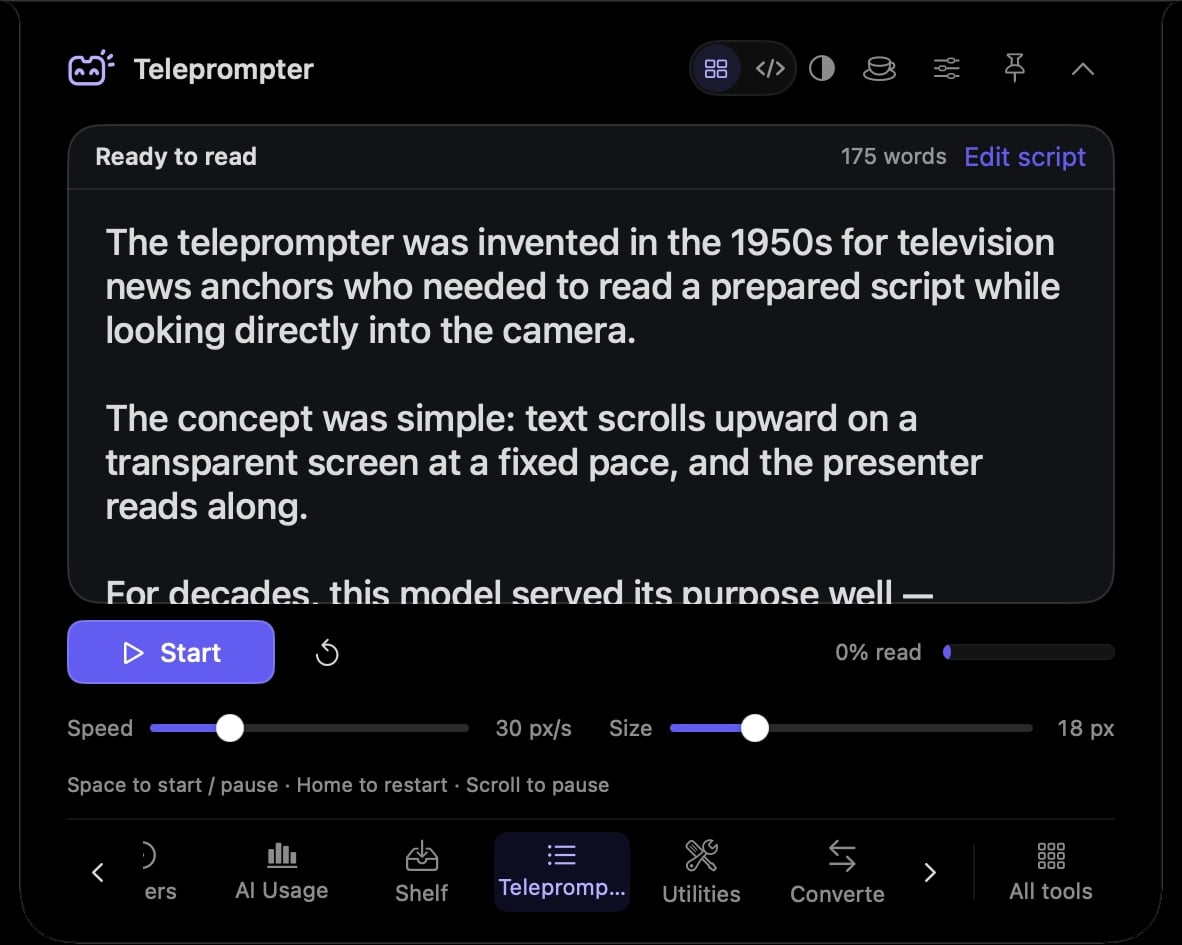
Keep the words near your Mac’s camera position.
Adjust the text size to suit your screen and reading distance.
Change the reading speed for the way you want to speak.
Paste the lines you want to practise and find a reading pace that feels comfortable.
Keep your prepared words near the camera while you deliver a presentation.
Hover over or click the compact notch, use the menu-bar icon, or press Control–Option–Space. Search tools with Control–Option–K. If a shortcut is already taken, check the active shortcut in Settings.
Pin a favourite from All tools for quicker access. More about opening the notch
Script playback pauses when you leave the tool or close the notch. Open Teleprompter again when you want to continue reading.
Teleprompter is one of 21 tools and features in MicroNotch.
Back to all toolsSign up for emails about product updates, new features and new products.
£14.99 introductory launch price · two Macs.One-time · licence never expires · standard price £19.99. Buy MicroNotch