 MicroNotch

An agent is still working. Another run has finished. A third session may be waiting for you, but its window is somewhere behind the editor. Checking each one can become a job in itself.
MicroNotch’s Code mode gives supported local coding sessions a shared place at the top of your Mac. It is a way to see when you are needed while keeping your working application in focus. It does not replace the coding tools, their accounts or your responsibility to review what they do.
Connect the tools you already use
Code mode supports Codex, Claude Code, Cursor and Antigravity through the connections described in the provider guide. Open Settings → Code and connect one provider before adding the rest.
The application follows supported local desktop and CLI sessions. It does not include AI subscriptions, API credits or access to a provider you have not set up. Available information depends on the provider, its version and the connection that is active.
For an initial check, run a small, familiar task in the source application. Confirm that MicroNotch can see that session before depending on its status during a larger piece of work. If it cannot, use the setup guide rather than assuming a quiet panel means nothing is running.
Separate status from permission to act
A running session, a confirmed input request and a completed run are different states. Code mode brings them together so you can decide whether to keep working, inspect a request or review a result.
Completion is not the same as success. Failed and cancelled work are distinguished from successful completion, and you should still inspect changes and validation in the original workflow. A status panel cannot establish that generated code is correct.
| Provider | Monitoring connection | Controls to expect |
|---|---|---|
| Codex | Local session records, a shared server when available, and supported desktop connections | Desktop follow-ups and supported asynchronous desktop questions; approvals still require a shared server connection |
| Claude Code | Local hooks and transcript updates | Request-specific approvals and questions while the supported hook is attached |
| Cursor | Local lifecycle hooks and transcript updates | Open the source application or copy a follow-up; input detection is limited |
| Antigravity | Local hooks and visible transcript updates | Explicit question and permission signals where available; continue other actions in the source app |
Use this as a starting point, then check the current capability table. Provider support can change without making all connections equivalent.
Supported Codex desktop connections can show and answer asynchronous questions even when the shared CLI server is unavailable. The desktop connection must expose a supported question interface. MicroNotch checks that the original question is still pending before sending an answer; an unsupported or unavailable connection keeps the source-app fallback. Desktop approvals still need the shared server.
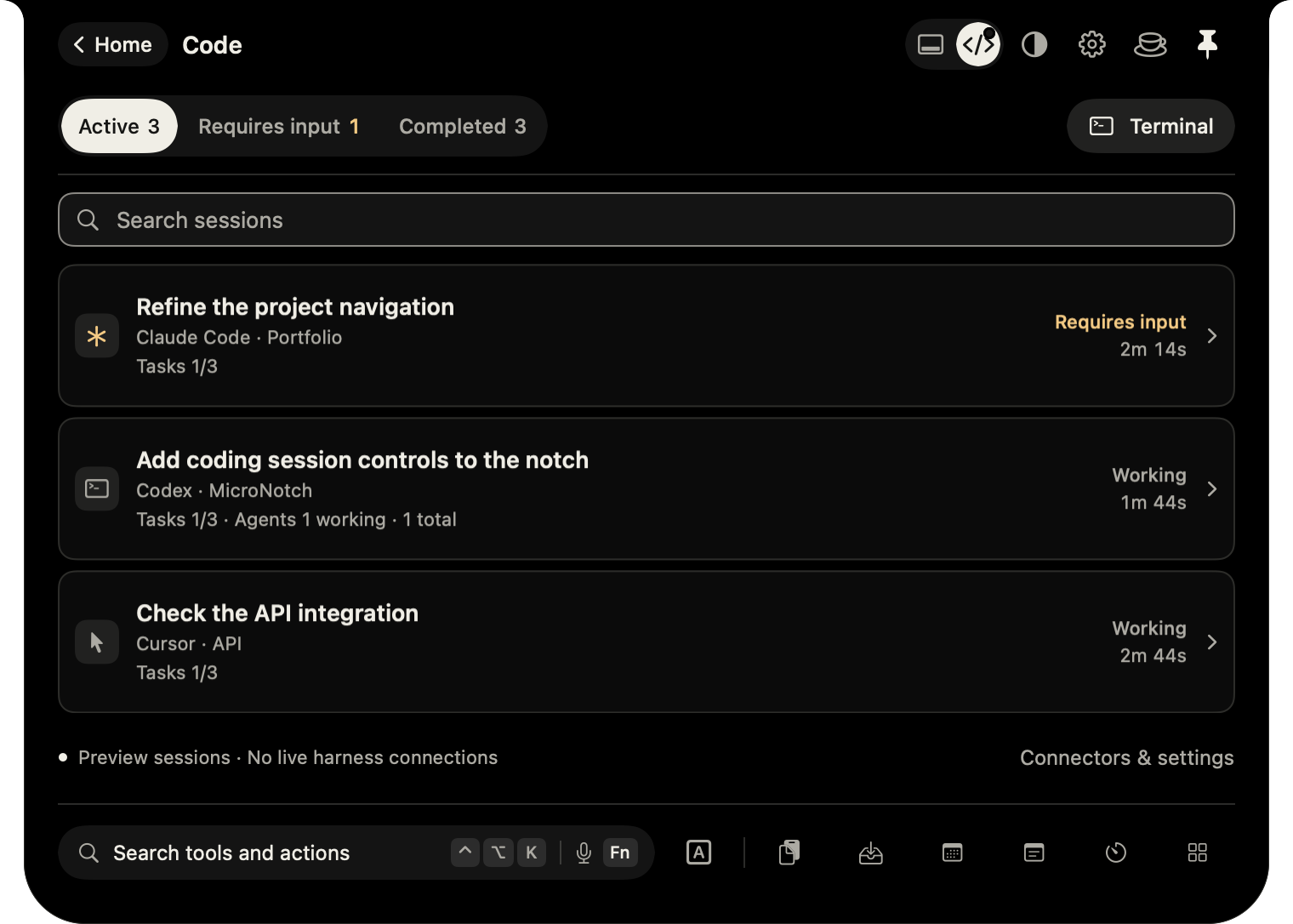
The refreshed Code panel groups sessions into Active, Requires input and Completed cards. Search by title, provider or project, then open a run for its current request and latest visible output. Longer content scrolls within the panel.
Make the alert useful, not constant
Choose a badge or automatic expansion when input is needed. MicroNotch keeps keyboard focus in your current app, so a visible request does not have to become an unexpected focus change.
While you are in Code mode, MicroNotch quiets its unrelated alerts, timer sounds and automatic Shelf navigation. Other background tools continue to run. This is not a claim that it mutes other applications or configures macOS Focus.
A practical arrangement is to use the badge while writing or reading code, then open the panel when you reach a natural stopping point. Automatic expansion may suit a task where answering a request is the main thing holding the run up. Pick the behaviour that matches the work, rather than enabling every alert.
Keep the consequential review in the source workflow
Read permission requests before approving them. If a request is unclear, open the source application and inspect the surrounding context. The point of bringing a request into reach is to make it easier to review, not to turn approvals into reflexes.
When a run finishes, return to your usual diff, build and test process. Check which files changed, whether the scope is right and what validation actually ran. A green completion state is a useful signal to start that review.
If you use multiple providers, give each connection a brief check after updates. A hook or shared server that has stopped reporting can leave an incomplete picture. Continue in the source app whenever that picture is uncertain.
Begin with one visible session
Try Code mode with one local session you already understand. Adjust its input alert behaviour, then decide whether another provider adds useful information. Keep clipboard, notes and dictation nearby if they help the handoff, without making the panel another place to supervise all day.