 MicroNotch

Last verified: November 2026
Start with Apple Dictation
If you only dictate the occasional reply or note, try the Dictation tool that comes with your Mac. Enable it in System Settings → Keyboard, then read the text below Dictation to see if your setup needs an internet connection. Apple says that general text fields and search boxes can be treated differently, so test in the app where you actually write. See Apple’s Mac Dictation guide.
MicroVoice is part of MicroNotch, which we make. It works offline after a one-time model download and uses a hold-to-talk shortcut by default. Wispr Flow is an example of a cloud service to consider if you want a dictionary and automatic cleanup. These workflows compare the documented features, and the sample phrases let you check them on your Mac.
Compare what happens after you speak
| Feature | Apple Dictation | MicroVoice in MicroNotch | Wispr Flow on Mac |
|---|---|---|---|
| Price | Included with macOS | £14.99 once for two Macs | Free plan and paid subscriptions |
| Connection | Check Keyboard settings for your Mac and language | Download the model once, then dictate offline | Internet connection required to transcribe |
| Start and stop | macOS Dictation shortcut or Edit menu | Hold Fn and release to finish, or set a different shortcut | Flow’s desktop shortcut |
| Where the words go | Into the field you’re typing in | Clipboard, with auto-paste if you grant Accessibility | Into the active text field |
| Formatting and vocabulary | Punctuation options vary by language and macOS | Detects 25 languages. Review the transcript before sending | Dictionary, snippets and adjustable cleanup |
See MicroVoice setup · How Wispr Flow transcribes · Wispr Flow plans
Dictate a short email without a connection
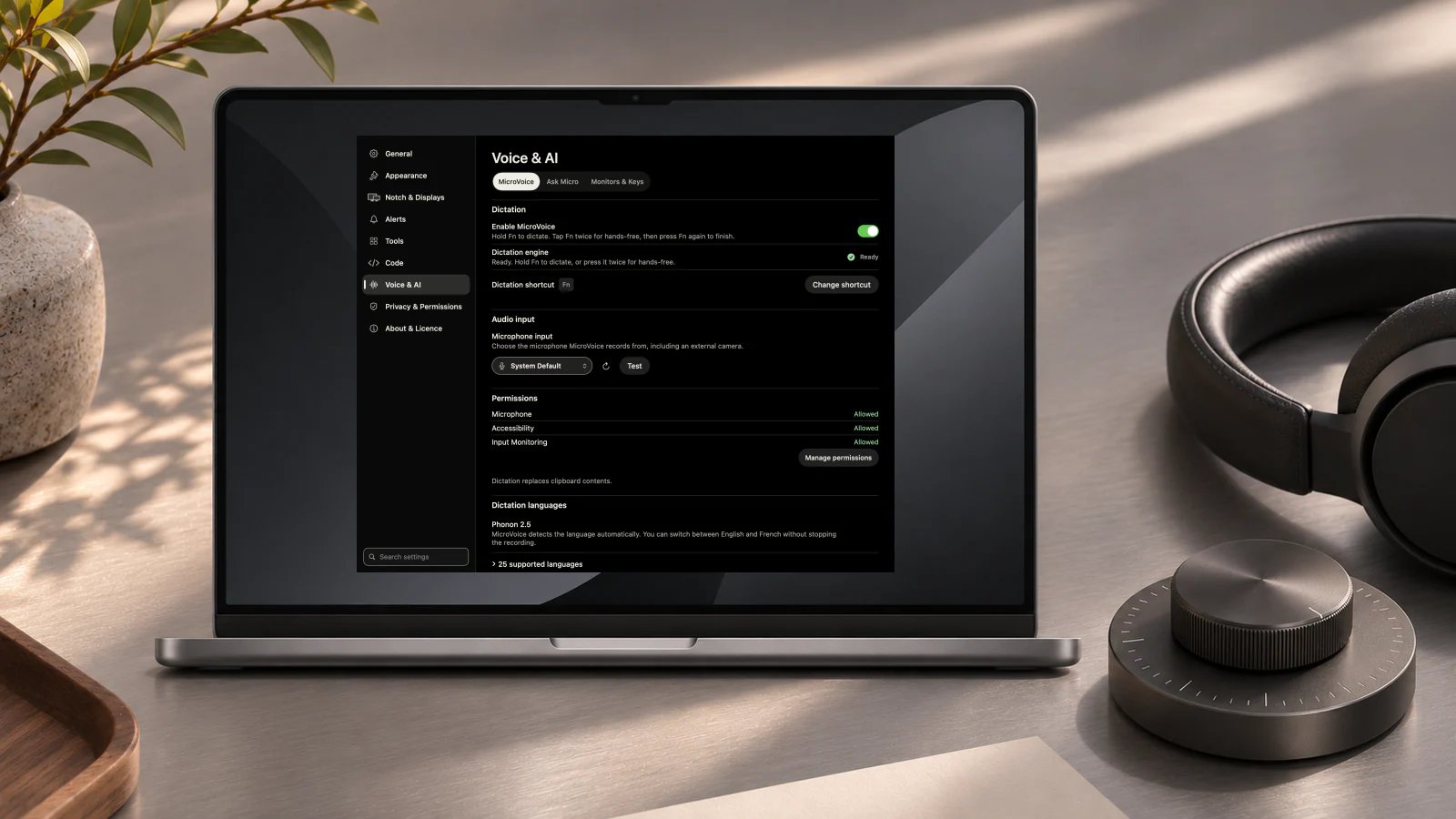
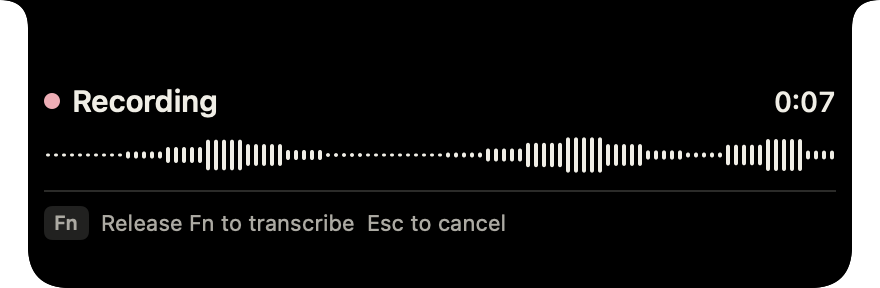
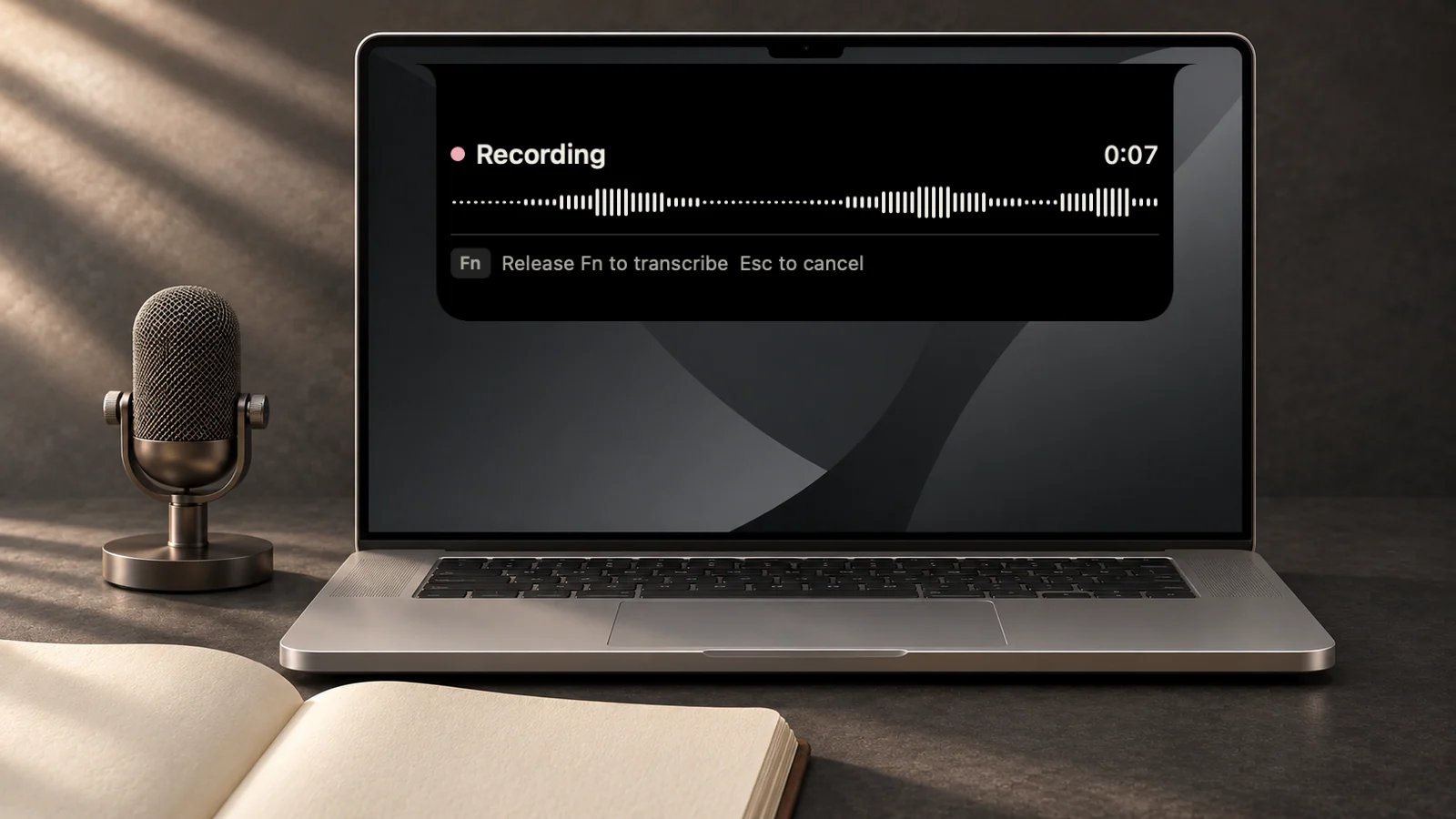
Set up both Apple Dictation and MicroVoice before you go offline. For MicroVoice, download the model, allow microphone access, and allow Input Monitoring if you use Fn across apps. Allow Accessibility if you want the transcript pasted into your reply. Otherwise, paste it yourself from the clipboard. See the MicroVoice recording panel.
Disconnect Wi-Fi and any other active network connection. Open a fresh Mail draft and say the same thing with each tool.
Hi Priya, can we move the handover to Thursday at half past two? I’ll send the updated PDF before lunch.
Look at the name, time and punctuation. Check whether the transcript lands in Mail or needs a paste. Apple Dictation is enough if it works offline in your setup and leaves you with a reply you’re happy to send. Try MicroVoice if you prefer holding the shortcut for the length of a short message, or if your Apple Dictation setup requires a connection.
Try the names and technical terms you use at work
Reconnect before including Wispr Flow. Use a fresh paragraph for each tool and dictate the same prompt.
Check the OAuth callback in auth dot ts. The refresh token works in Safari but fails in Firefox after the second request.
Check how each tool writes OAuth and the filename. Count the words you need to change before sending. Repeat once with a name from your own work. If the filename changes with cleanup enabled in Flow, try a different cleanup setting. Its dictionary can help with a repeated name or term. Evaluate accuracy and editing separately. A neatly formatted transcript still needs checking if it changes a filename or value. See Flow’s cleanup options and dictionary guide.
Choose for the places you write
- Apple Dictation is the simplest starting point if it handles the languages and apps you use, including the ones you need offline.
- MicroVoice is worth a trial if you want a hold-to-talk shortcut, offline transcription after setup and a one-time licence. Try it in both your usual writing app and the one you use away from a connection.
- Wispr Flow is worth checking if its dictionary and cleanup save you editing, and you have internet access where you dictate. Start with the free plan to see how it handles your language and vocabulary.
Frequently asked questions
Which Macs support MicroVoice?
MicroNotch requires macOS 15 Sequoia or later and runs on Apple silicon and compatible Intel Macs. The MicroVoice model is designed for Apple silicon. We haven’t verified MicroVoice on Intel Macs.
Does MicroVoice need Accessibility to record?
No. It needs microphone access to record. Accessibility lets it paste the transcript into your active app. The transcript replaces the clipboard contents, whether you let MicroVoice paste it or paste it yourself.
Do I have to use the rest of MicroNotch?
No. You can switch off the other tools and use only MicroVoice.