 MicroNotch

Last verified: November 2026
Choose where you want the controls
Alcove is a good fit if you want to skip a track or see your Focus state while the Mac is locked. MicroNotch helps once you’re back at your desk and need to retrieve a link, hand off a file or dictate a reply. Both require macOS 15 Sequoia or later. We make MicroNotch and use Alcove’s product demo and its developer’s Lock Screen walkthrough for Alcove’s features.
At a glance
| Feature | MicroNotch | Alcove |
|---|---|---|
| Licence | £14.99 once for two Macs | One-time licence for up to three Macs |
| Lock Screen | Use the notch panel after unlocking | Now Playing and Focus widgets |
| Playback while unlocked | Music from the notch or compact panel | Now Playing, plus swipe controls |
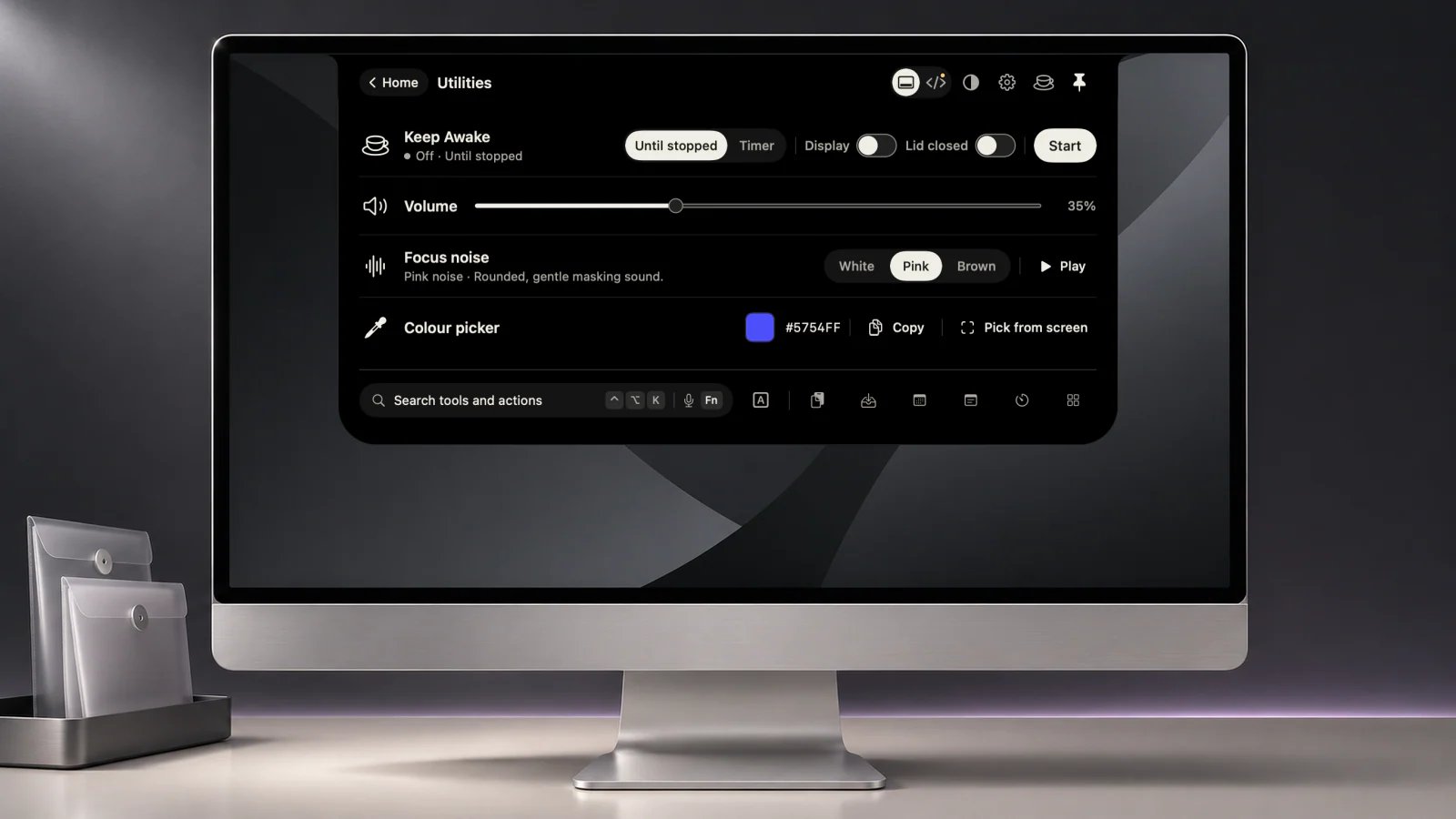
| System controls | Volume and brightness tools in the panel | Notch HUDs for volume and brightness |
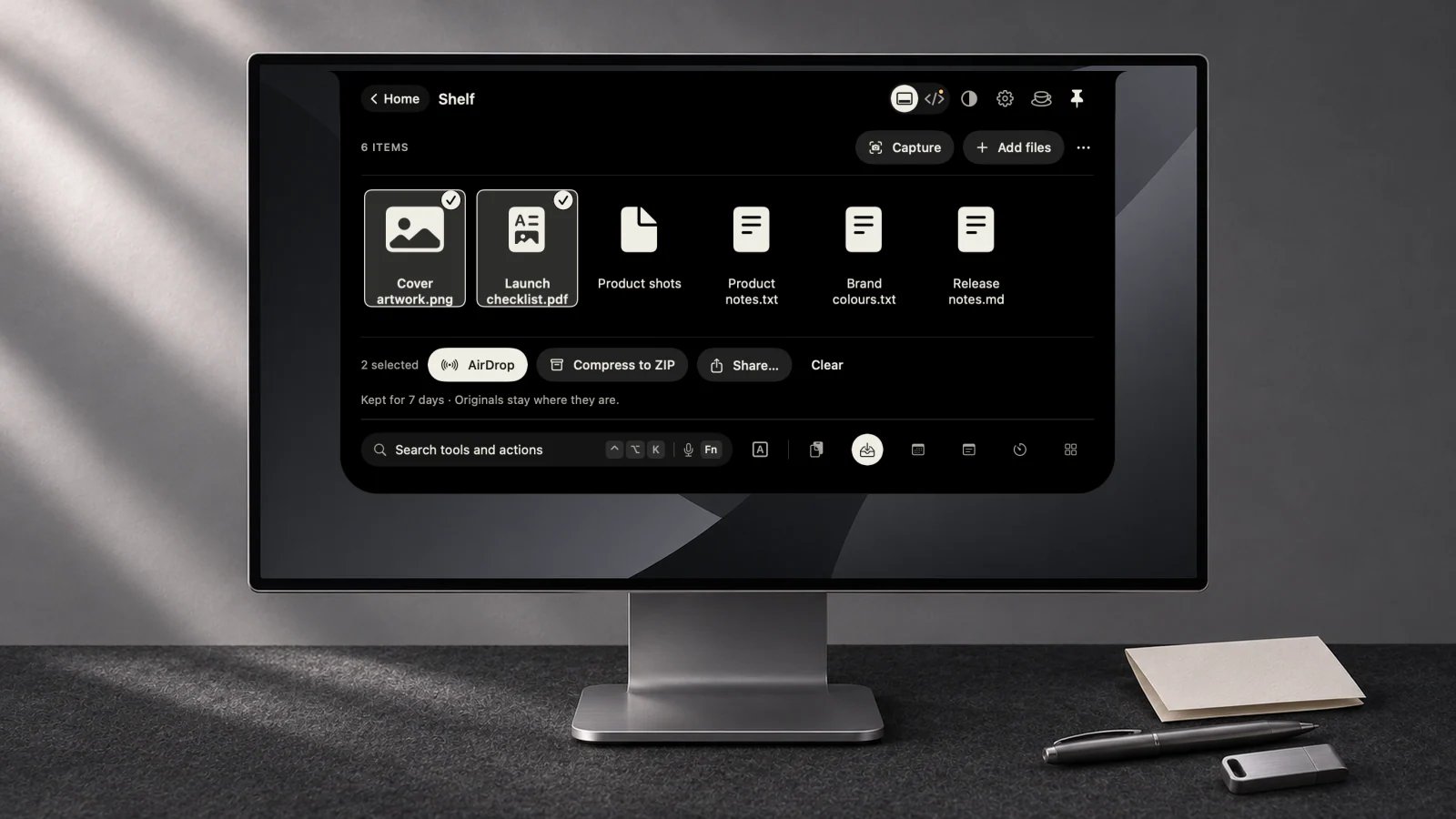
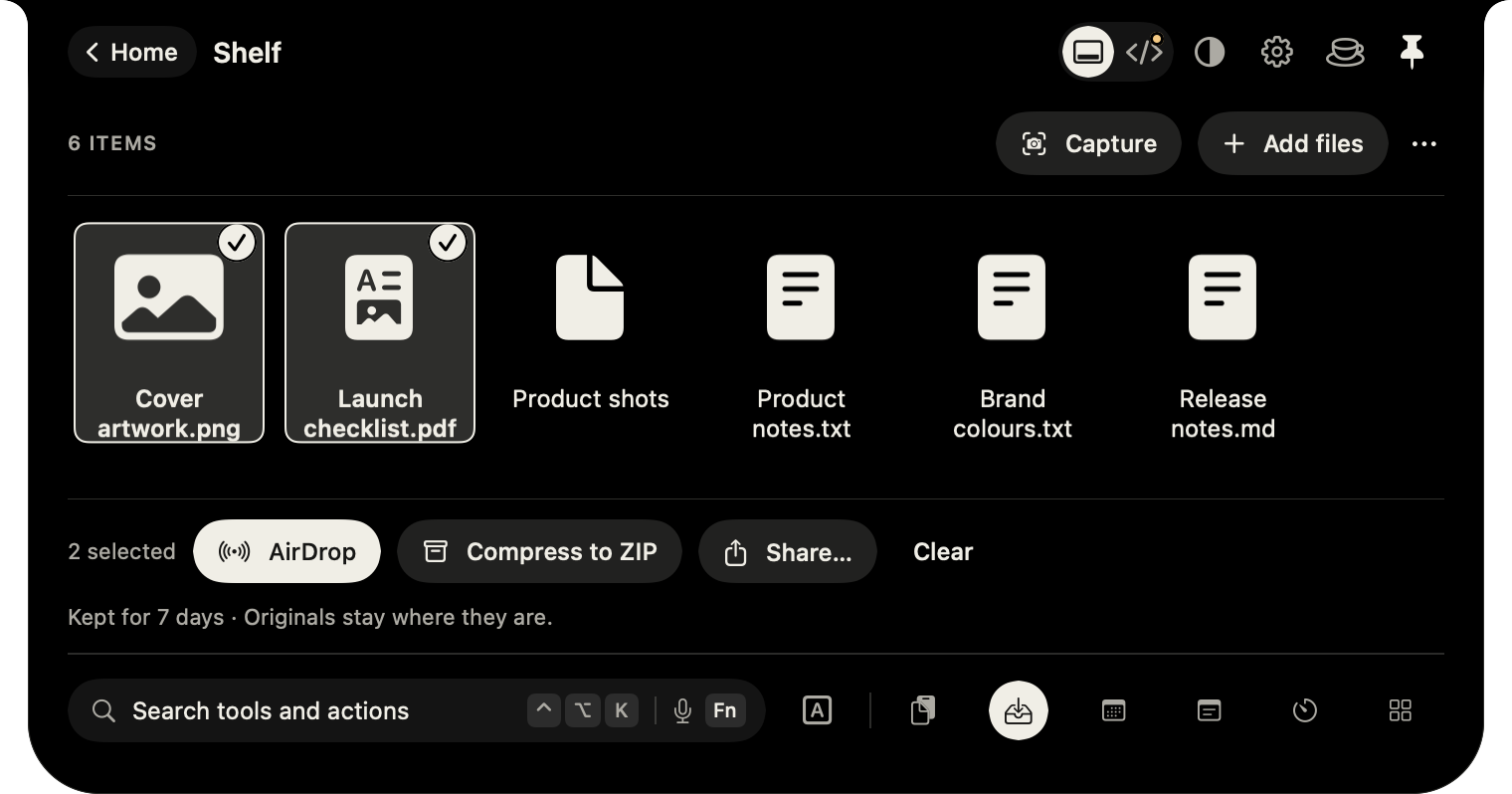
| File and clipboard workflow | File Shelf and searchable, opt-in clipboard history | Check the current build if you need a file tray or clipboard history |
| Offline dictation | MicroVoice after a model download | Use macOS Dictation or a separate app |
| External display | Compact top-of-screen panel | Virtual notch, including on screens without a camera cut-out |
Change what’s playing while the Mac is locked
Start music in the player you normally use, then lock your Mac. Alcove puts a media widget on the Lock Screen alongside the current Focus state. The developer says Alcove can control sources that appear in macOS Control Centre, so check there first if you use a browser player or a less common music app. Try the player you use most and see if the controls you need are there. See Alcove’s Lock Screen demo.
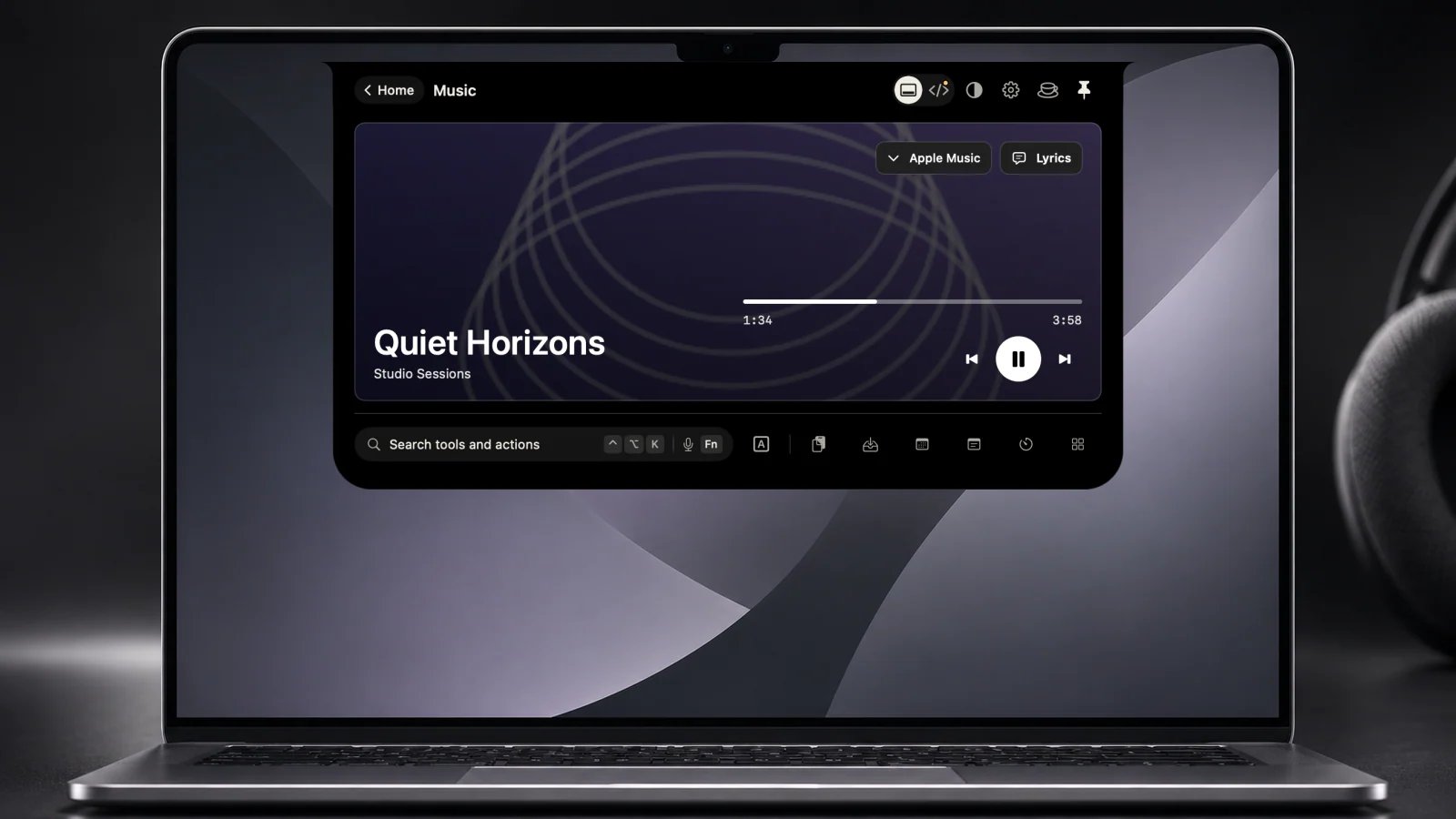
MicroNotch puts Music controls in the unlocked notch or compact panel. That fits a setup where you want playback within reach while working. If you reach for those controls most often from the Lock Screen, Alcove is the stronger choice here. See the MicroNotch mini player.
Recover a link or send a file after you unlock
Suppose you copied a link before lunch and now need it in Mail. In MicroNotch, turn on clipboard history, then search for a word from the link and pin it if you’ll use it again. To attach some screenshots, leave them on File Shelf while you get the message ready, then collect them in a ZIP. You can keep just Music and the tools you use in the panel.
With Alcove, plan to retrieve old clips in your existing clipboard app and attach the screenshots from Finder unless the current build covers your workflow. That setup can suit you if you already have shortcuts and tools you like. If you often switch between several utilities just to finish one reply, try the same handoff in MicroNotch. See File Shelf.
Check your desk setup
Try your usual media source with the Mac locked, then repeat it after you connect your external display. See which screen gets the control you want and whether it stays within reach when the laptop lid is closed. If you use three Macs, check licence coverage before you choose. Alcove covers up to three on one licence. MicroNotch covers two.
Frequently asked questions
Do I need a physical MacBook notch?
MicroNotch can open as a compact panel on a Mac without a notch or on an external display. Alcove can show a virtual notch. Try either app on the display you use most.
Can I keep MicroNotch to just music controls?
Yes. Use Quick Setup or Settings to leave Music on and switch off the tools you don’t use.