 MicroNotch

A Mac notch app can give you a place to park files, find something you copied and dictate a reply without leaving the app you’re working in. If those are the jobs you keep opening separate utilities for, one notch app might be enough. If you need a clipboard that follows you to your iPhone or an app that can transcribe a folder of interviews, it makes sense to keep a dedicated tool for that job.
I built MicroNotch around the smaller things you do throughout the day. Here’s how I’d work out what belongs in the notch, what’s already covered by macOS and where I’d keep a separate app.
Start with what you want from the MacBook notch
If all you want is a different way to see volume and brightness changes, try MewNotch. It’s free and open source, with customisable indicators for both. If you’re looking for a Mac notch app with clipboard history, a file shelf and offline dictation, Gojo is another one to look at, particularly if window switching and snapping are high on your list. MewNotch · Gojo · Compare Mac notch apps
With MicroNotch, I’d start with two or three tools you’ll use straight away. A file shelf and clipboard history are a good pair because they solve different halves of the same problem. The shelf holds the files you’ve picked out. Clipboard history helps you find the text, links and images you’ve copied along the way. Explore the MicroNotch tools
A drag-and-drop file shelf and clipboard history for Mac
Give files a place to wait while you work
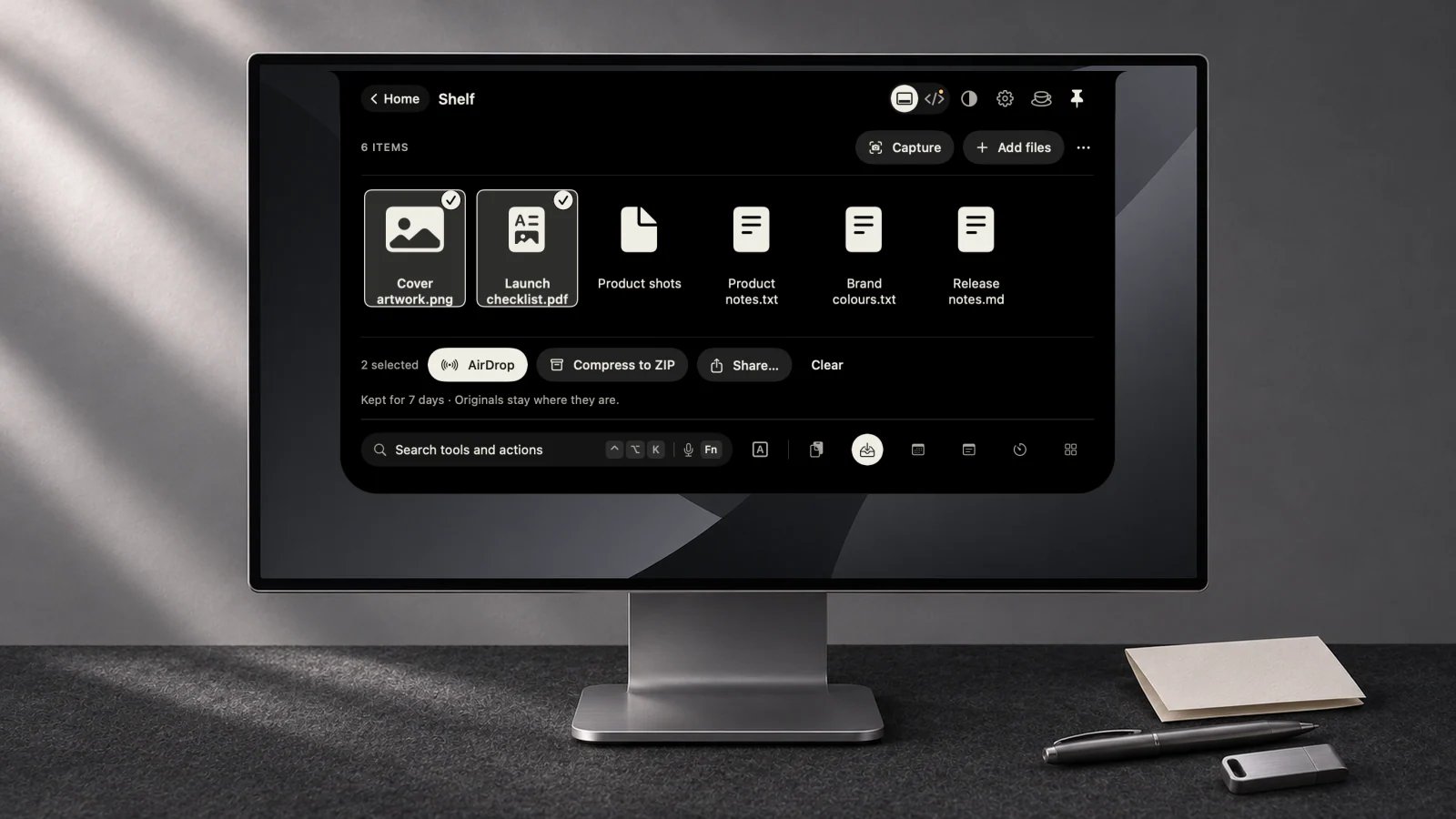
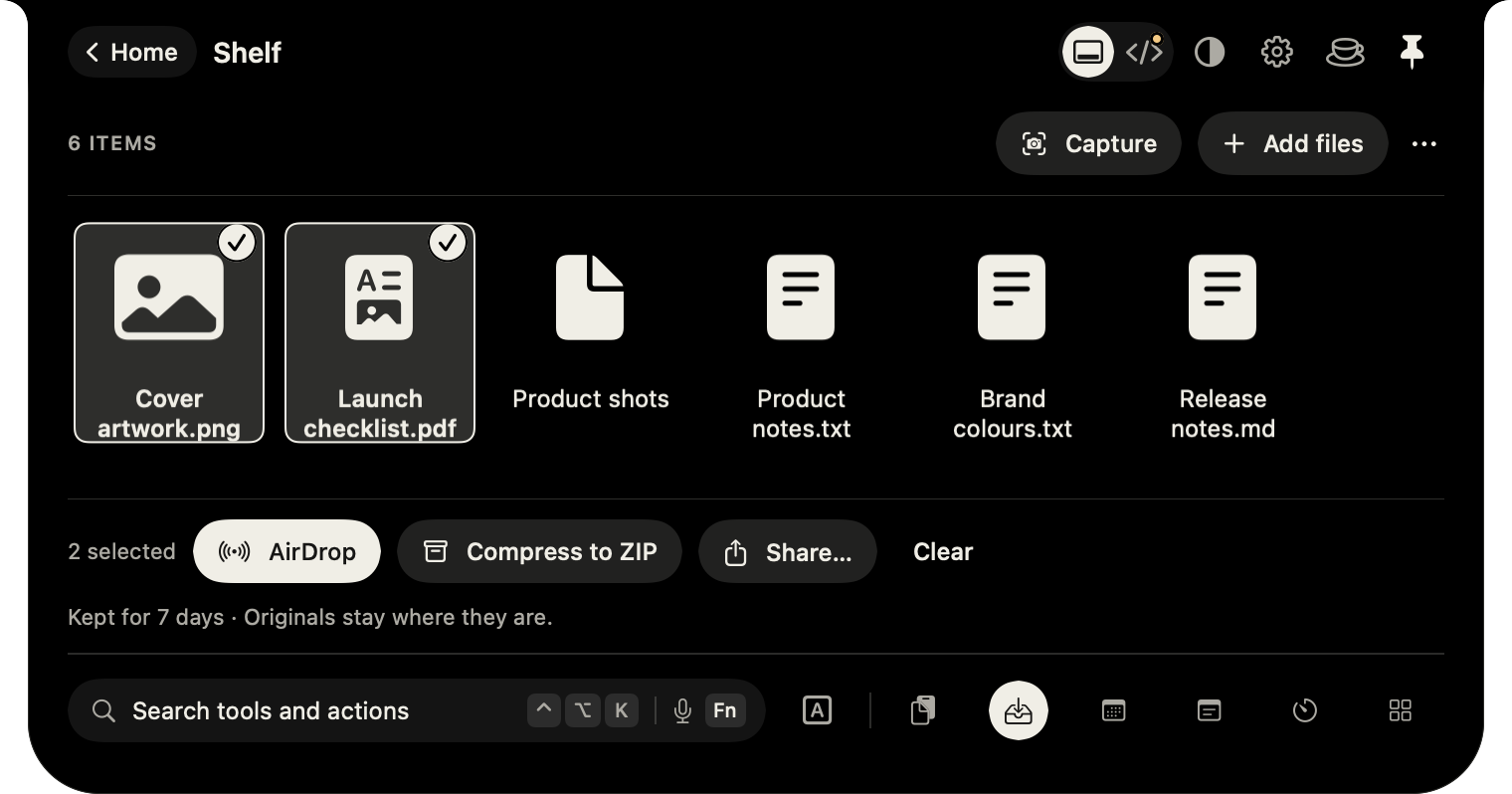
Say you’re putting together a handover. The brief is in one folder, the screenshots are in another and you still need to find the final PDF. Drop each item onto the MicroNotch Shelf as you find it. The shelf keeps its own copies, so you can carry on working in the source folders. When everything’s ready, select the items and drag them into a Finder folder together, make a ZIP, or share them via AirDrop. See how the MicroNotch file shelf works
Dragging a selection into Finder leaves the shelf copies available if you need them again. If you’re finished with them, use Move to Folder to put the shelf copies in their destination and clear the items that moved successfully. If drag and drop is the main thing you want to improve, Yoink is worth trying. It puts a temporary shelf at the edge of your screen and can hold content dragged from apps as well as files. MicroNotch file shelf actions · Yoink for Mac
Find the link you copied three things ago
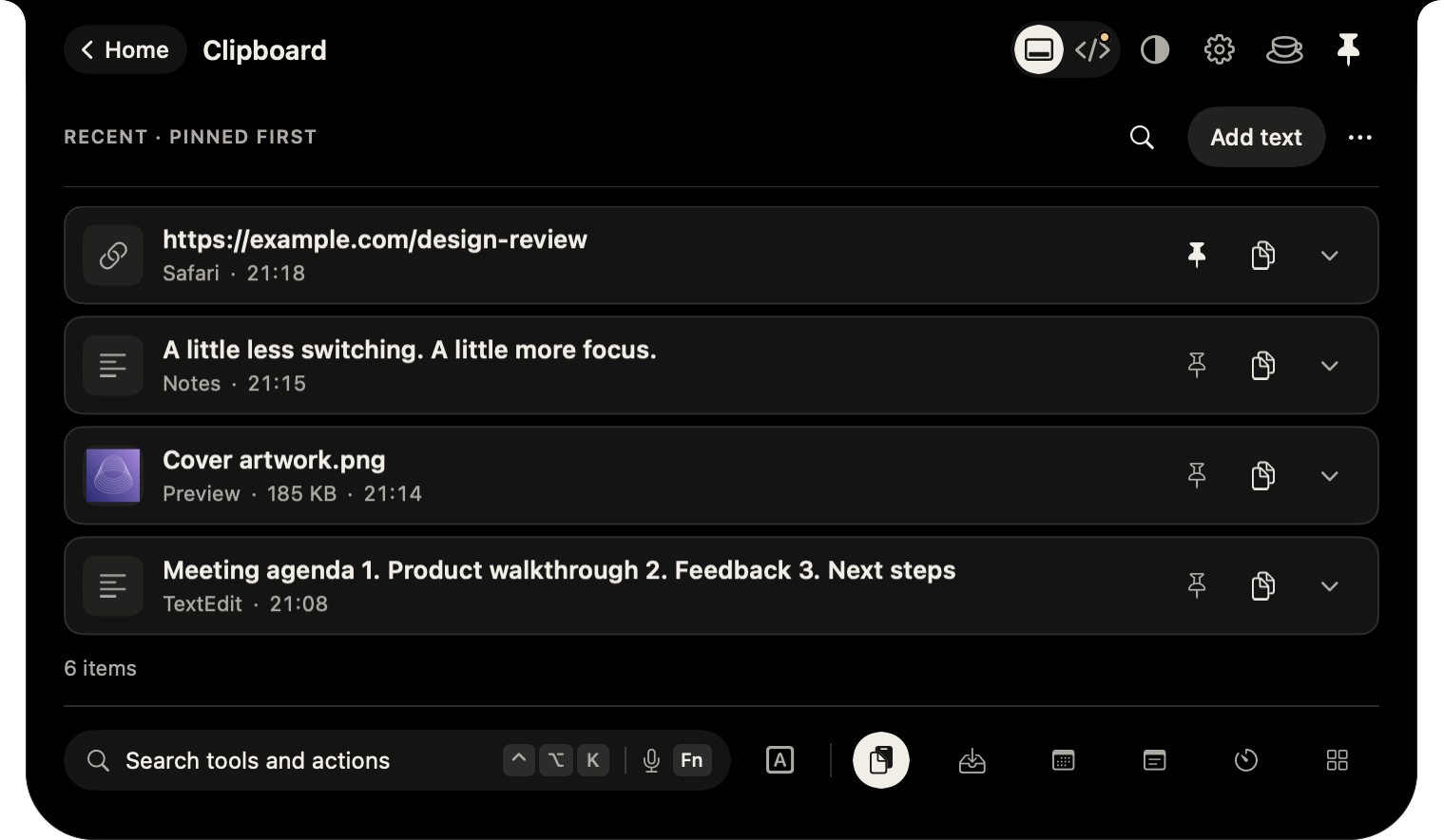
You copy a link, then an address, then a line from a document. When you come to paste the link, the line from the document is on the clipboard. In MicroNotch, open Clipboard, search for part of the link or filter the list by clip type, then copy the item again. You can preview a clip before using it and pin things you come back to, such as a booking link or a reply you send regularly. Search and pin clips in MicroNotch
Clipboard history starts paused on a fresh install. Once you enable it, clips are stored on your Mac and collection can continue while the notch is closed. If you want a shared history and organised collections across a Mac, iPhone and iPad, that’s a good reason to look at a dedicated clipboard manager such as Paste. MicroNotch clipboard settings · Paste’s cross-device pinboards
Offline Mac dictation for emails, notes and prompts
For the odd sentence, start with the Dictation feature already in macOS. You’ll find it under System Settings → Keyboard → Dictation. If you’re looking at MicroNotch for other jobs as well, try MicroVoice in the places you actually write, whether that’s Mail, Notes or a coding chat. Set up Apple Dictation · Try the MicroVoice demo
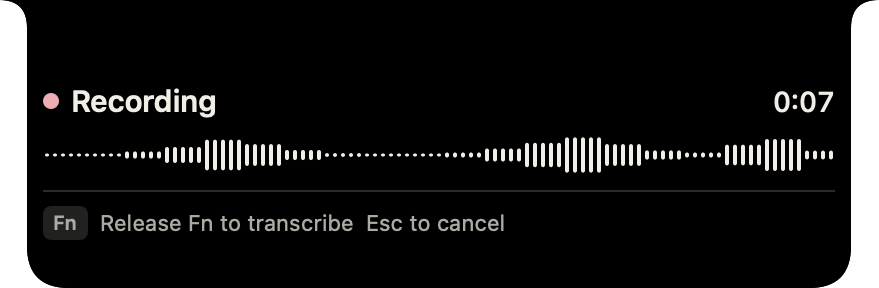
With MicroVoice, hold Fn, speak and release to transcribe. You can use your own shortcut or double-press Fn to start hands-free, then press it once to finish. Recordings can run for up to two minutes at a time. After the initial model download, transcription runs on your Mac and works offline. It detects the language for each recording across 25 supported languages, so you can dictate a reply in French and then start a note in English. MicroVoice setup and permissions · Supported dictation languages
One detail worth knowing during setup is where the text goes. MicroVoice copies the transcript to your clipboard, replacing what was there. Give it Accessibility permission if you want it to paste straight into the active text field, or paste the transcript yourself. Where MicroVoice puts your transcript
For longer work, think about what you want back once you’ve finished speaking. If you want a rambling voice note turned into an email with a particular tone and layout, Superwhisper offers custom modes for that. If you already have a folder of recorded interviews or videos, MacWhisper offers batch transcription. A quick reply and a folder of recordings are two different jobs, even though both start with speech. Superwhisper custom modes · MacWhisper · More on offline Mac dictation
Monitor Codex and Claude Code from the Mac notch
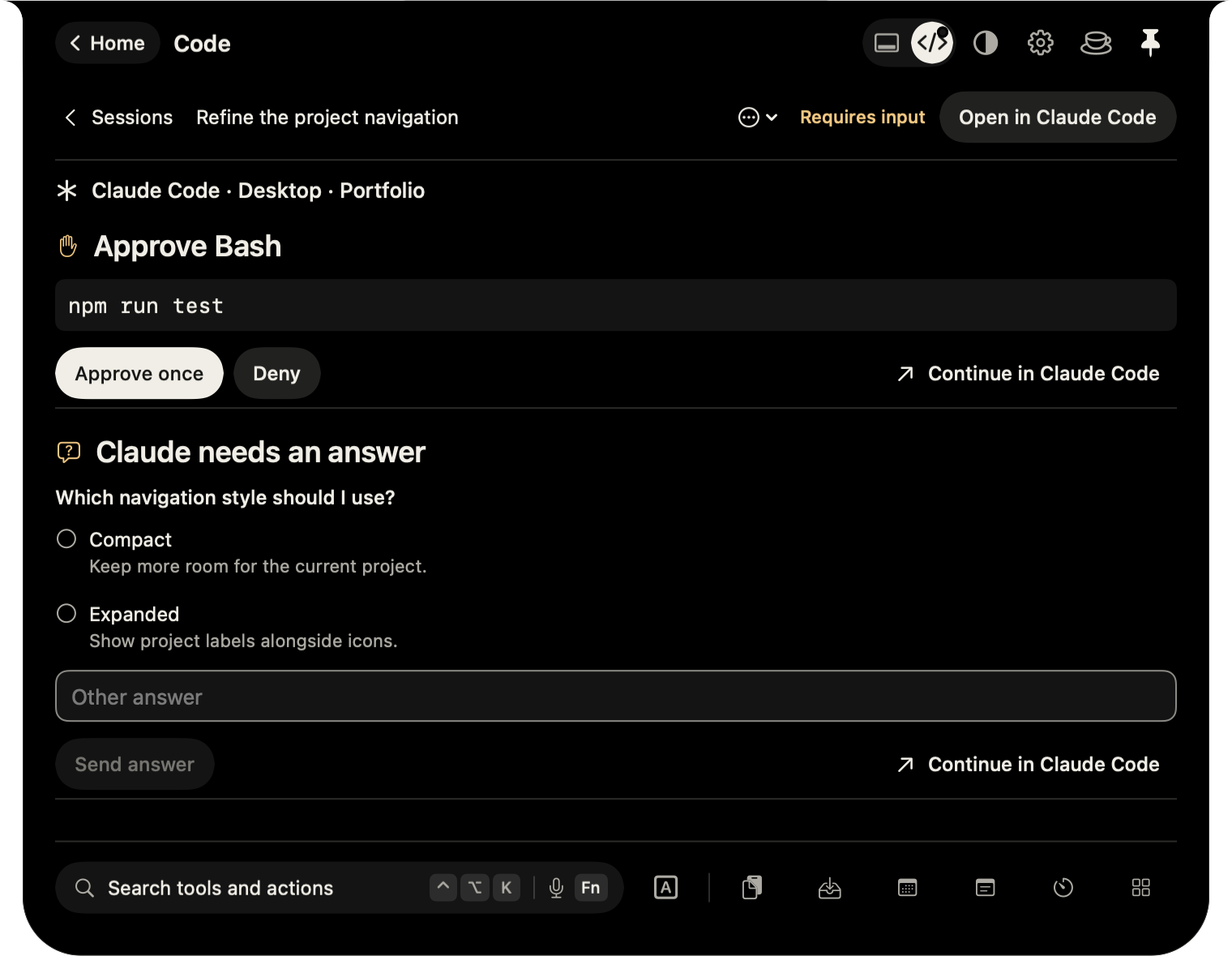
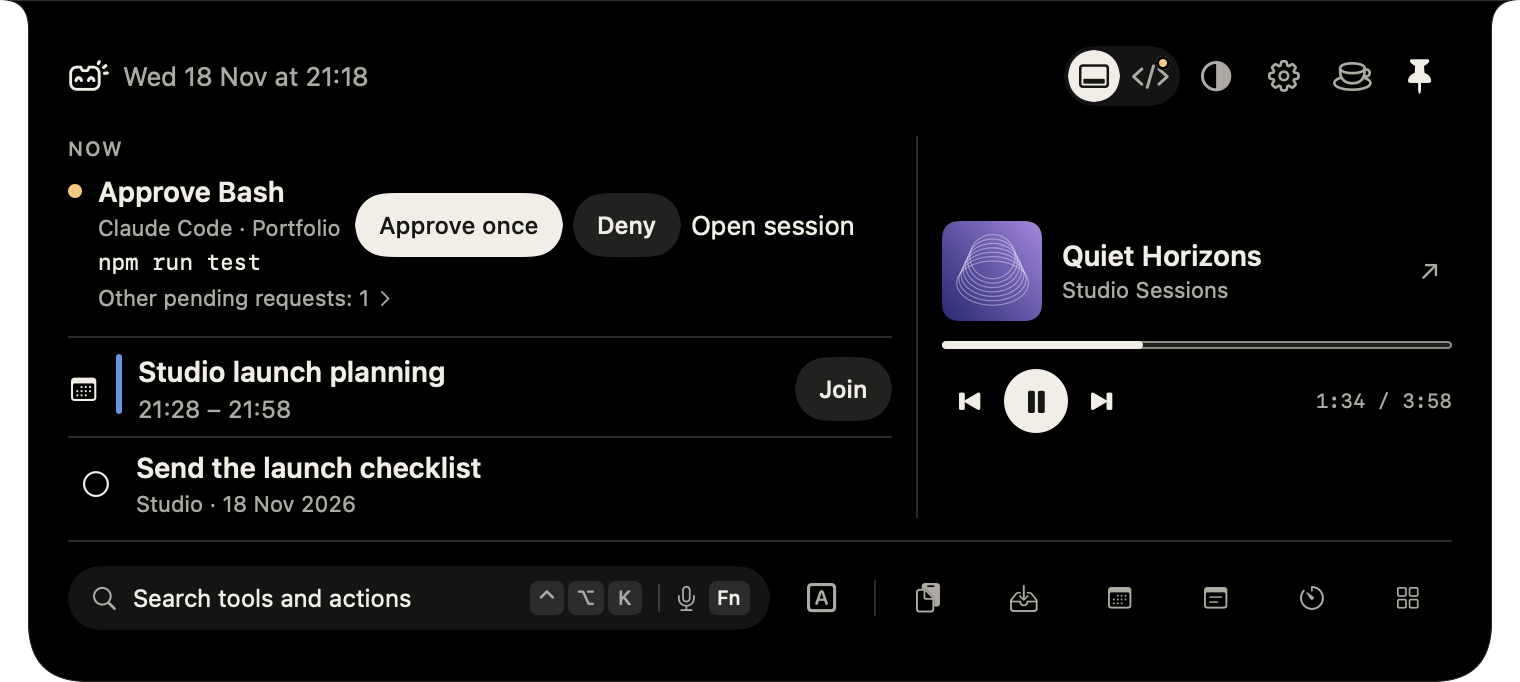
Say you’ve left a coding session running while you review a pull request. You want to know if it’s finished, still working or waiting for a decision. In MicroNotch, Code mode groups sessions under Active, Requires input and Completed. Open a waiting task to see what it needs. Where the connection supports it, you can answer a question or approve or deny a request from the notch. Check what each Code mode connection supports
The distinction matters if you rely on a particular action. A linked Codex desktop chat can take supported answers and follow-ups. Standalone Codex CLI approvals have their own setup. Supported Claude Code sessions can surface permission requests and questions, while Cursor and Antigravity can take you back to the source app or terminal to respond. Test the connection you use before deciding which setup suits you. Compare Codex, Claude Code, Cursor and Antigravity controls
When a session has a local project folder, you can open Project Terminal there to run a test or check Git. The shell keeps running when you collapse the notch, so you can reopen it and pick up where you left off. If most of your day is spent moving between different command-line agents, Vibe Island is worth comparing for its broader range of CLI integrations and shortcuts back to the terminal or editor that raised a request. Try the Project Terminal demo · Vibe Island documentation
What else is worth keeping in the notch?
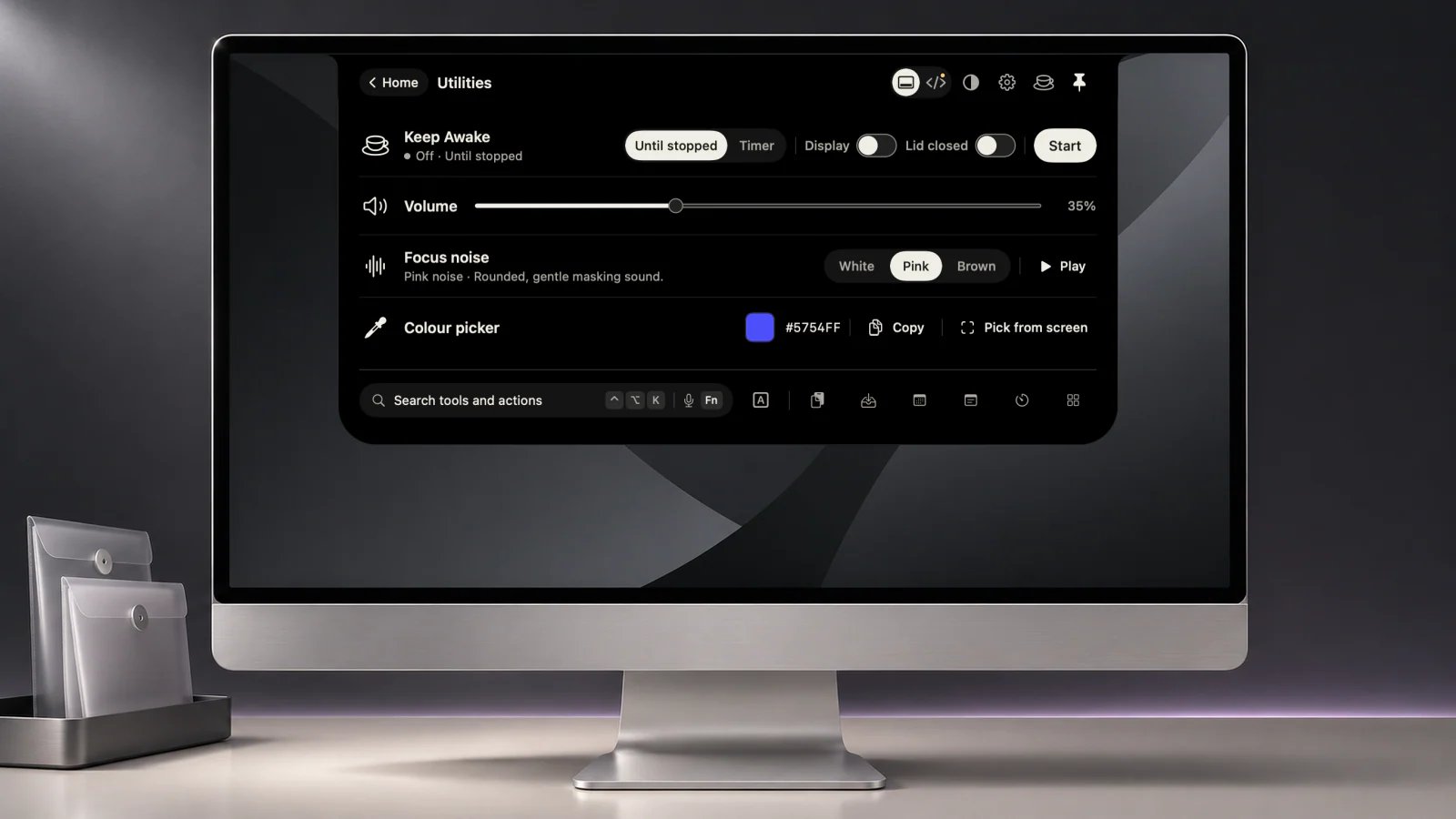
I’d pick the tools that save you opening a window for one small action. Before a call, check your next event and open a supported meeting link from Calendar. Between calls, start a Pomodoro and close the notch while it runs. If you’re recording a short introduction, open the teleprompter, put the script near the camera and set a scroll speed you’re comfortable reading. Calendar and meeting links · Pomodoro and countdown timers · Teleprompter
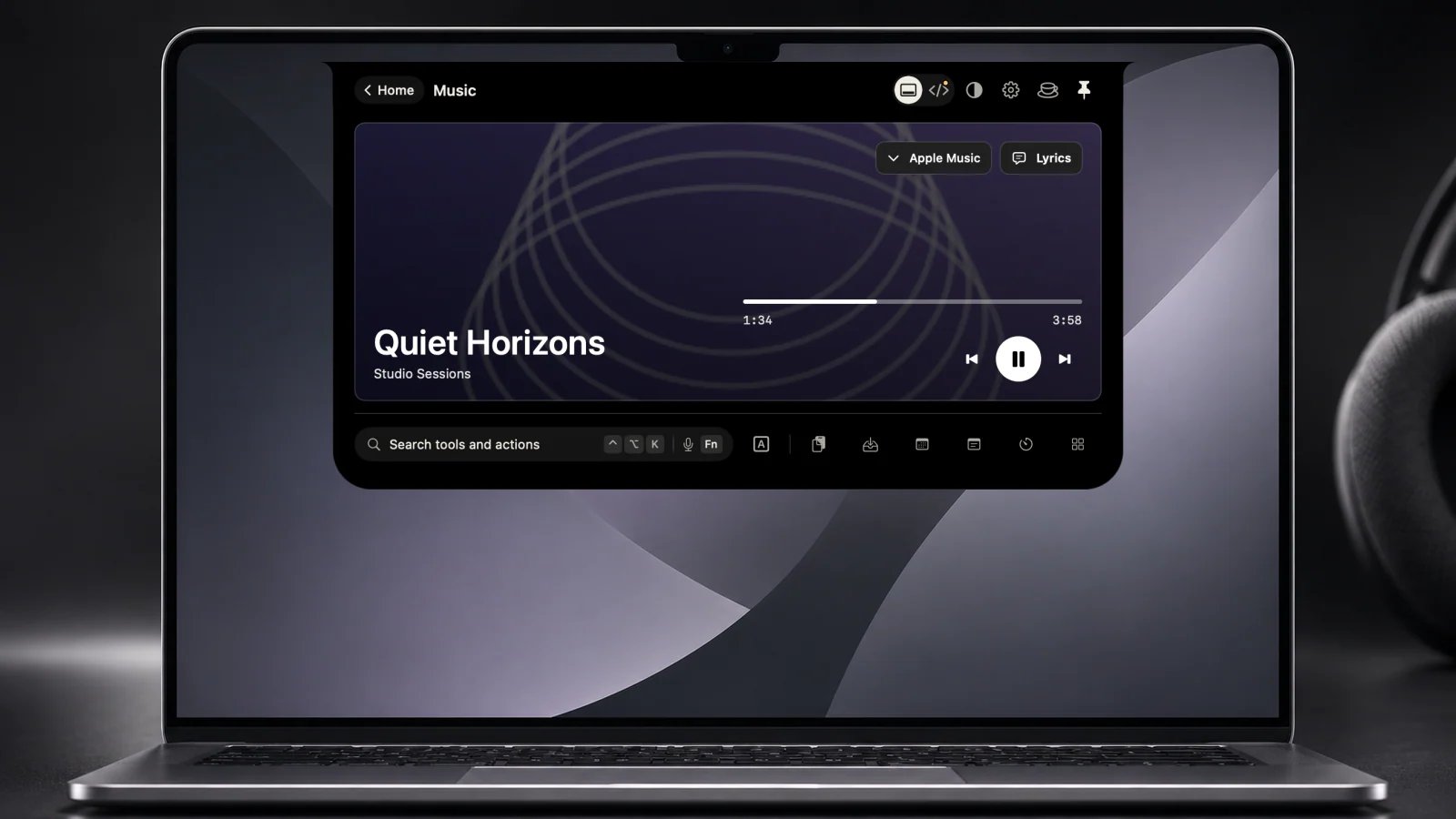
There’s also a local scratchpad in Quick Note. If a rough note turns into something worth keeping, connect Apple Notes and save a copy there. For music, the notch can pause or skip tracks from a connected Apple Music or Spotify desktop app. These are the bits I’d judge by how often you reach for them in a normal week. Quick Note and Apple Notes · Apple Music and Spotify controls
Does MicroNotch work without a notch or on an external monitor?
Yes. On a Mac mini, iMac or external monitor, MicroNotch opens as a compact panel at the top of the screen. You can choose a default display, have the panel follow the active display or use it on multiple displays. If you dock a MacBook at your desk, try opening the panel on the monitor you actually work on and adjust its size and position there. Mac and external display settings
MicroNotch requires macOS 15 Sequoia or later and has a universal download for Apple silicon and compatible Intel Macs. The Intel build was tested under Rosetta, and MicroVoice is designed for Apple silicon. MicroVoice on a physical Intel Mac is still unverified. Mac compatibility · MicroVoice requirements
Try it with the apps you already use
Keep your current setup while you try MicroNotch. Pick two jobs you did yesterday. Recover a link after copying something else, put the files for a handover on the shelf or dictate the next reply you’d normally type. If you use Code mode, check whether you can handle the specific request you usually switch windows to answer.
After a couple of days, you’ll know which jobs you naturally do from the notch and which still feel better in the app you already use. MicroNotch has a free three-day trial that starts when you verify your email in the app. No card is needed. The regular UK price is £14.99 including VAT for a one-off licence covering two Macs. Download MicroNotch for Mac · See licence details